Alerts
Alerts play a sound or a message, or show an image or a video, when something happens in your LIVE.
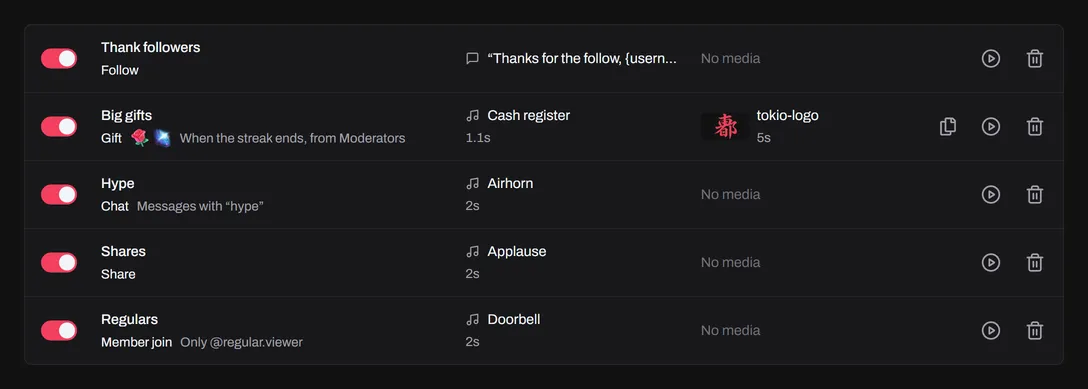
Alerts belong to the profile; your sounds and media, in the Library, are shared by all profiles.
Make an alert
Section titled “Make an alert”-
On the Alerts page, click Add alert, click it and type a Name.
-
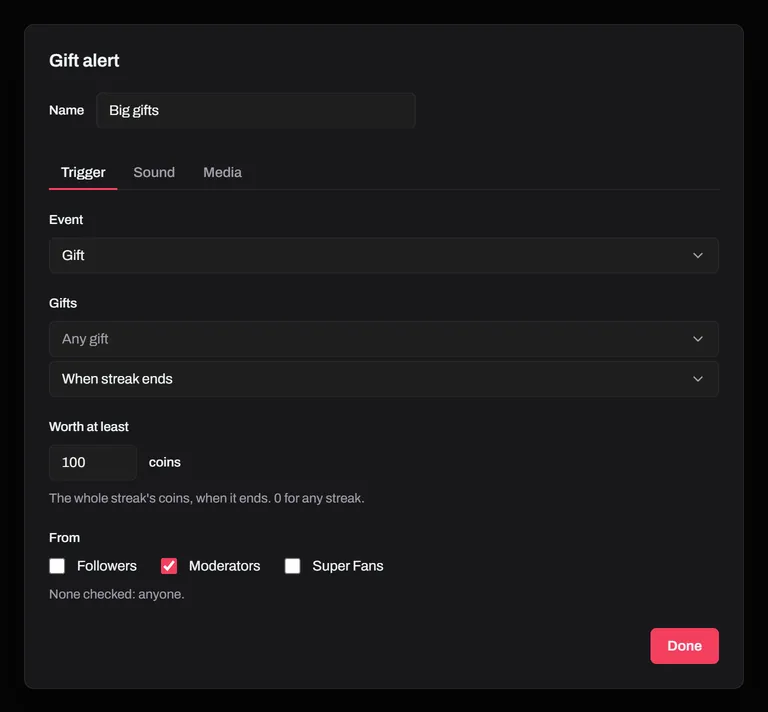
On the Trigger tab, pick the event.
-
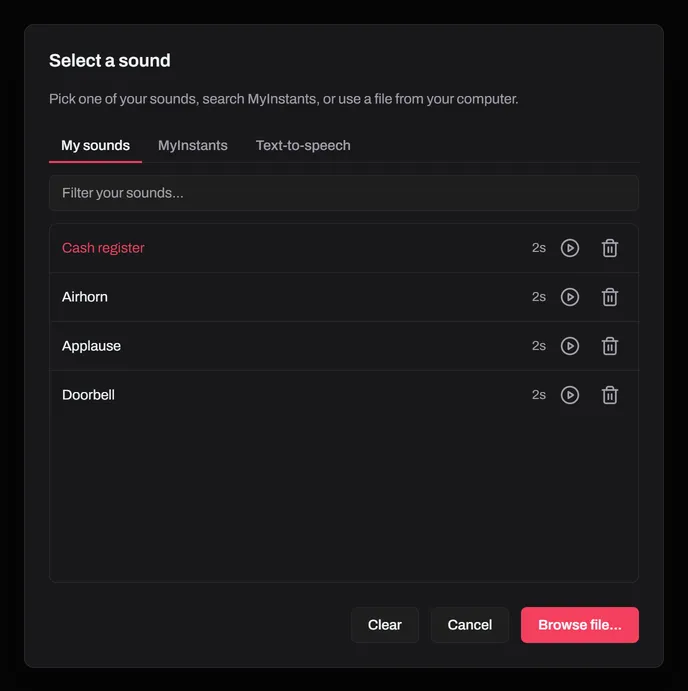
On the Sound tab, click Choose sound… and pick a sound.
-
On the Media tab, add an image or a video, if you like.
-
Turn on Alerts on Home, and test the alert with its play button.
Each alert’s row has its own on/off switch, and Home counts how many are on.
To find an alert, click the search button next to Library.
Triggers
Section titled “Triggers”Pick the Event: Chat, Emote, Follow, Share, Like, Gift, Envelope, Super Fan, Super Fan Box, Super Fan join, Member join or Music change (a new song from music requests). A Like alert plays for every batch of likes TikTok sends, from any viewer.
To play one alert on more than one event, click Add a trigger. It plays on any of them, up to five, and each keeps its own filters.
Under From, check Followers, Moderators or Super Fans to play only for them. Only Chat, Emote and Gift have it, since a viewer’s roles only come with those.
Platforms
Section titled “Platforms”When the profile connects to two or more platforms, each trigger has a platform select before its event: Any platform, or one of the profile’s platforms, TikTok, Twitch, YouTube or Kick. Pick one to play only for that platform’s viewers, and the event list shows what it sends. Music change comes from Tokio, so it only plays on Any platform.
With one platform, there’s no select, and the events are that platform’s. Chat and Emote come from all four, Follow from TikTok and Twitch, Gift from TikTok, YouTube and Kick, and Subscription and Gifted subs from Twitch, YouTube and Kick. On Any platform, a Follow alert plays for a follow on either.
Twitch adds five triggers:
| Trigger | Plays when |
|---|---|
| Subscription | A viewer subscribes or renews |
| Gifted subs | A viewer gifts subscriptions, once for all of them |
| Bits | A viewer cheers with Bits |
| Raid | Another channel raids you |
| Channel points | A viewer redeems a reward. Type its title to play only for it, in any case, or leave Any reward |
Twitch only has Bits and channel points on Affiliate and Partner channels.
Twitch’s chat doesn’t say who follows, so From → Followers never passes a Twitch viewer. Moderators includes you, and Super Fans are your Twitch subscribers.
YouTube adds Super Chat, which plays for a Super Chat or a Super Sticker. Its memberships play Subscription, for new members and for milestones, and a gifted membership plays Gifted subs once for the whole gift.
YouTube has no followers either, so Followers never passes a YouTube viewer. Moderators are your channel’s moderators and you, and Super Fans are its members.
Kick has Chat, Emote, Gift, Subscription, Gifted subs, Raid and Channel points. A Kick plays Gift, worth its price in Kicks as coins, and a host plays Raid, with the viewers it brings. Gifted subs play once for the whole gift.
Kick has no followers or fan levels, so Followers never passes a Kick viewer. Moderators are your moderators and you, and Super Fans your subscribers and founders.
Sounds
Section titled “Sounds”Pick one of your sounds, search MyInstants, or Browse file… for an mp3, wav or ogg up to 8 MB. Clear takes it off the alert, and Volume sets how loud it plays.
Cutting a sound
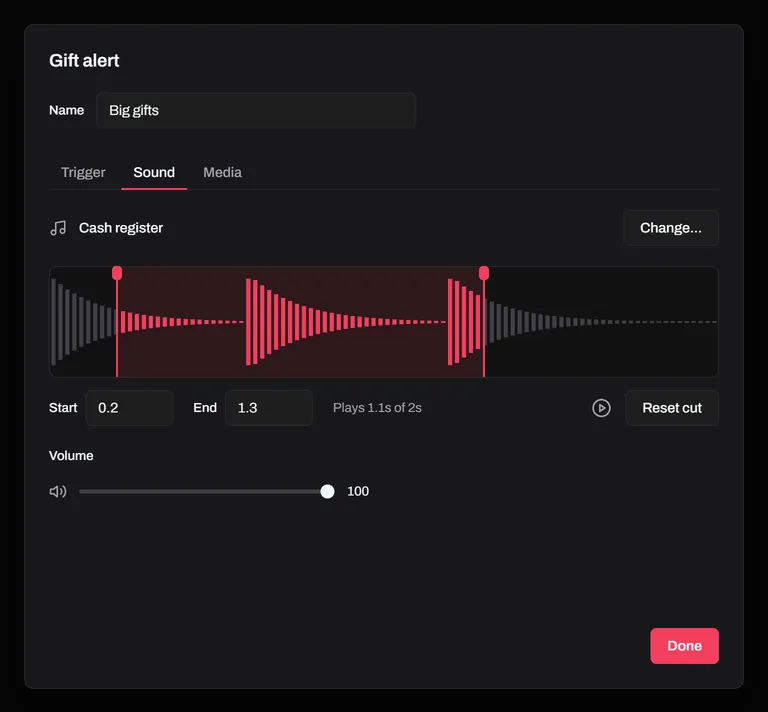
Section titled “Cutting a sound”Drag the waveform’s handles to cut the start or the end, or type the seconds in Start and End. The play button next to Reset cut plays only the cut.
More on cuts
- With a handle focused, the arrow keys move it by a tenth of a second, or a second with Shift.
- The file stays whole, so other alerts can cut it their own way.
- The alert’s row shows the cut’s length, and its play button plays only the cut.
Spoken messages
Section titled “Spoken messages”On the sound picker’s Text-to-speech tab, type a message, pick a voice, and press Use text-to-speech. The message has its own Speed and Pitch, which start from the TTS page’s.
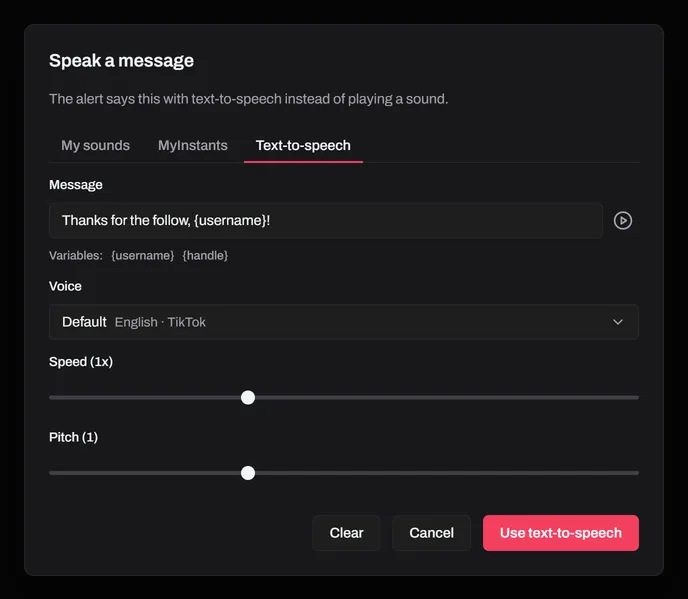
Click a variable to add the event’s details:
| Variable | Triggers |
|---|---|
{username}, {handle} |
All but Envelope, Super Fan Box and Music change |
{comment} |
Chat and Emote; Subscription, Bits and Super Chat (what the viewer wrote); Channel points (what they typed) |
{translation} |
Chat and Emote, with Chat translation on: the message’s translation, or the message as typed |
{gift}, {count} |
Gift ({count} is the combo size, except on Every gift) |
{count} |
Like (the likes sent) |
{count} |
Subscription (the months so far), Gifted subs (the subs gifted), Bits (the Bits) and Raid (the viewers it brings) |
{reward} |
Channel points (the reward’s title) |
{amount} |
Super Chat (what it cost, as YouTube shows it, like $4.99) |
{song} |
Music change |
The TTS page’s replacements, Remove emojis, banned words, cooldown and queue length apply too. A banned word in what a variable fills in, like a name or a comment, skips the whole alert, image or video included.
For a viewer on the block list, the message isn’t read, but the alert’s image or video still shows.
Images and videos
Section titled “Images and videos”Click Choose media… for a png, jpg, gif, webp, mp4 or webm up to 50 MB. An image stays for its Duration, up to 60 seconds, or longer if the sound is longer.
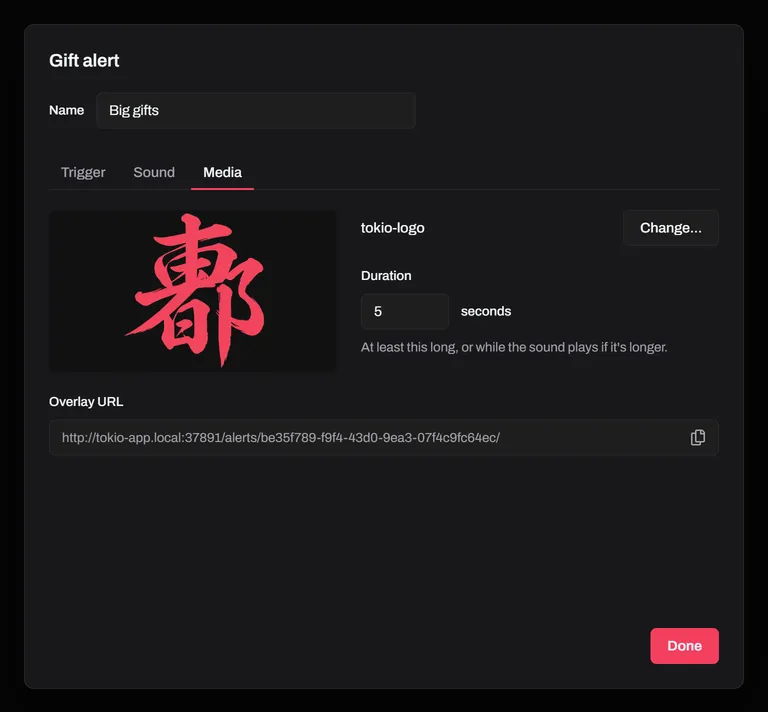
Each alert shows its media on its own overlay:
http://tokio-app.local:37891/alerts/<alert-id>/Copy it here or from the alert’s row, add it to your streaming app, and press the alert’s play button to check it.
Videos
- A video stays while it plays, up to 60 seconds.
- Cut keeps part of it, like a sound’s cut.
- A video that doesn’t say its length can’t be cut: set its Duration instead.
- A video plays its own sound, at its own Volume.
- To hear videos in a browser tab, see Fonts and sound.
Library
Section titled “Library”Library, in the header of the Alerts page, holds your sounds, images and videos. Click + to add many at once, and the search button to find one.
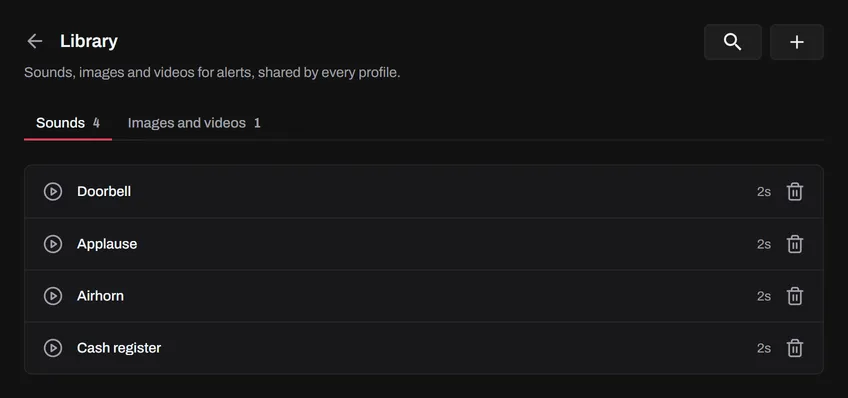
The newest come first. Click a sound’s play button to hear it, or an image or video to see it full size.
Deleting a file removes it from every alert, after you confirm. Deleting an image or video also empties the Overlay Studio elements that showed it.
Gift alerts
Section titled “Gift alerts”On the Trigger tab, click Any gift to pick gifts. Select all shown checks every gift the filters leave.
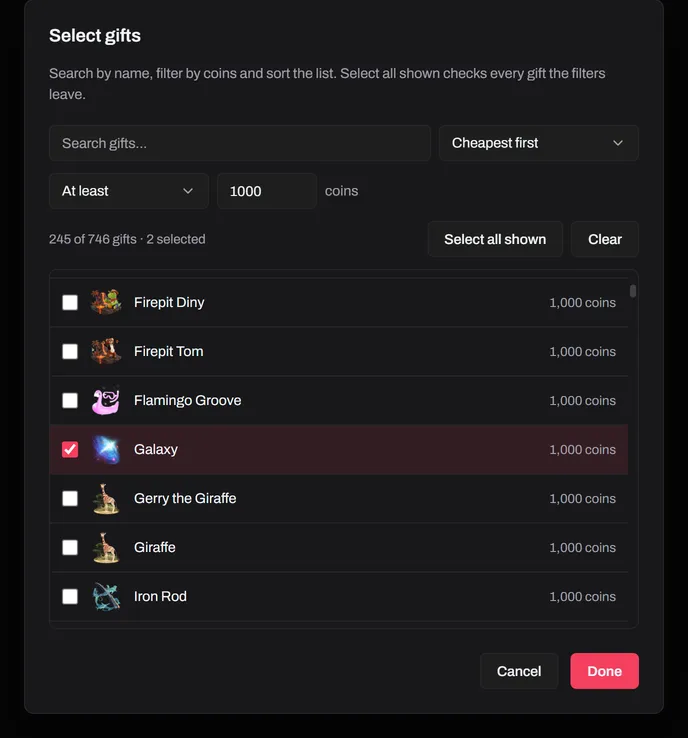
Then choose when it plays:
- When streak ends: once per combo, so a streak of 20 roses plays it once. The default.
- Every gift: once per gift, up to the queue’s length.
With Any gift, Worth at least sets the coins a streak, or a gift on Every gift, must be worth.
YouTube doesn’t say what its Gifts cost, so they’re worth 0 coins and play only with Worth at least at 0. They aren’t in the gift list either, so they play on Any gift.
Gifts missing from the list
TikTok’s list misses some gifts, like other regions’ ones. Tokio adds the ones viewers send.
Chat, emote and join alerts
Section titled “Chat, emote and join alerts”- Chat: type a keyword or phrase to play only for messages with it as a whole word. hi plays for “Hi there!” and “hi❤️everyone”, but not for “this”.
- Emote: click Any emote to pick emotes. The list fills as viewers use them.
- Member join and Super Fan join: type an @handle or name for an entrance sound for one viewer.
Alerts play one at a time. Max queue length drops the extras, and Play alerts at the same time lets different triggers overlap.
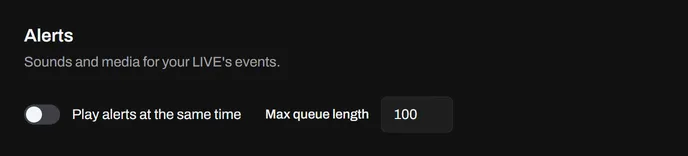
An alert with media holds the queue for its duration, so keep it short for likes. Alerts stop when you disconnect.