Overlay Studio editor
The editor opens when you click an overlay in Overlay Studio. Each change saves as you make it and reaches your stream right away.
Elements and groups
Section titled “Elements and groups”The Elements list shows every element, the front one on top, with a small picture of what it shows. An element that reacts to an event says which one under its name.
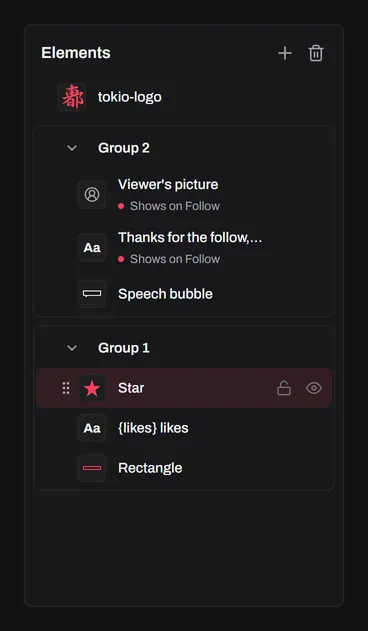
In the + menu, New group adds a group in front of the rest.
A new element goes into the selected group, or the selected element’s group, and the menu names it: Add to Group 1. Otherwise it goes in front, on its own.
Drag a row’s grip to reorder groups and elements, or to move an element into a group or out of one. Where you drop an element decides where it goes:
| Drop it | It goes |
|---|---|
| On a group’s row | In front, in that group |
| Near the top edge of a group’s row | In front of the group, on its own |
| Below the list, or in a gap between rows | There, on its own |
You can also focus a grip and press the up and down arrows. An element at the edge of its group steps out of it, and an element on its own steps into a group it meets.
Each group’s row has three buttons:
- the arrow next to its grip folds its elements away in the list;
- Lock group keeps the canvas from picking, moving, resizing or rotating its elements, and a click goes through to what’s under them. You can still change them from the list and their settings;
- Hide group takes it off the canvas and the stream until you show it again.
Each element’s row has its own Lock element and Hide element, which work the same for that element alone. The lock and hide buttons show when you point at a row or select it, and stay visible while they’re on.
Select a group or an element to name it in its settings. An element without a name shows what it is, like its text.
To delete the selection, click the trash button next to +. A group goes with its elements, and Undo brings them back.
On the canvas
Section titled “On the canvas”Click an element to select it, drag it to move it and drag any of its corners to resize it. To rotate it, drag the round handle above it.
A text’s box can’t get narrower than its longest word, or shorter than its words. It grows to fit them when you change its text, font, size or bold.
Position and size, Rotation (°) and Opacity set the same things by number. You can also click and hold a number field, then drag left or right to change its number.
Link width and height, the button between Width and Height, keeps the proportions as you change either one, in the fields or by dragging a corner. Align to the canvas moves the element to an edge of the canvas or to its center, and Flip mirrors it horizontally or vertically.
Select a group in the list to change all its elements at once. Drag inside its outline to move it, and drag its corners or its round handle to resize or rotate it.
A group’s settings have the same fields as an element’s, and its Opacity fades the whole group. Click an empty spot on the canvas or in the list to deselect.
Selecting several
Section titled “Selecting several”Shift-click elements on the canvas, or Shift-click or Ctrl-click rows in the list, to select several. Do it again on one to take it out. On the canvas, you can also drag from an empty spot: every element the box touches gets selected, added to what’s already selected if you hold Shift.
Drag any of them to move them all. They stick as one, and the arrow keys move them together. Delete, copy, cut and paste take all of them. Locked ones stay where they are.
With several selected, the settings say how many, with:
- Align to each other, which lines them up by their left, center, right, top, middle or bottom.
- Space evenly, across or down, which leaves the same gap between them when there are 3 or more. The two at the ends stay put.
- Put them in a new group, which groups them. It’s off while a group is selected, since a group can’t go inside another group.
- Delete the selection.
Each one is a single step for Undo. Several can’t be resized or rotated together.
Sticking
Section titled “Sticking”When you drag an element, a group or a corner, it sticks to the canvas’s edges and middle, the other elements’ edges and middles, and the guides while the rulers are on. A line shows what it lines up with.
Hold Alt while you drag to place it freely. The arrow keys, the fields, Align to the canvas and rotating never stick.
Cropping
Section titled “Cropping”You can crop an image, a video, a camera, a gift or an emote. The whole picture shows while you crop, with the parts you cut away dimmed.
- Double-click the element, or click Crop on the canvas in its settings.
- Drag the frame’s sides or corners to crop it, or drag inside the frame to move the picture under it.
- Press Enter or click outside to keep the crop, or press Escape to cancel.
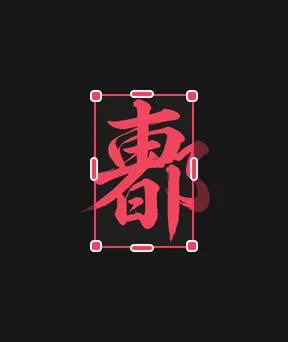
Cropping never moves or resizes the picture: the element’s box shrinks to the part you keep. Crop (%) in its settings sets the same crop by number, and Reset the crop brings back the whole picture.
Round corners rounds them, up to a circle for a square picture. A new file, gift or emote starts uncropped.
A viewer’s picture crops from its fields only. They pick the part of each viewer’s picture that fills its circle.
Videos
Section titled “Videos”Cut keeps a part of a video, as an alert’s cut does: drag the handles, or type the Start and End seconds. The canvas shows the frame you’re at, then plays the cut again, and Reset the cut brings back the whole video.
Volume sets how loud it plays. With Loop on, the video starts over when its cut ends.
With Loop off, the video plays once, and an element that shows on an event leaves when it ends: its Seconds on screen reads Until the video ends. Play again, next to Loop, plays it once more on the canvas.
An element that moves on an event plays its video again each time. The canvas is silent while you edit: click Canvas sound, the speaker under the canvas, to hear its videos.
Copy, paste and undo
Section titled “Copy, paste and undo”Copy, cut and paste work on the selection, each paste 20 px down and to the right of the last. A copied element goes into the selected group, and a copied group pastes as a new group.
The copy stays until Tokio quits, so you can paste it into another overlay.
Undo and Redo, at the top of the editor, go back and forward through your changes while the editor is open. A drag on the canvas counts as one change, and so does a number typed into a field.
Folding a group, showing the rulers, the selection and the zoom aren’t changes. Each change to the guides is one.
The bar under the canvas shows its zoom level. Zoom with its buttons, or with Ctrl and the mouse wheel where the pointer is.
Zoom to fit shows the whole canvas again. Zoomed in, move around with the wheel or the scrollbars, or hold Space and drag the canvas.
Rulers and guides
Section titled “Rulers and guides”Rulers and guides, the button beside the zoom, shows rulers along the canvas’s top and left edges, in pixels from its top-left corner. Each overlay remembers whether they’re on.
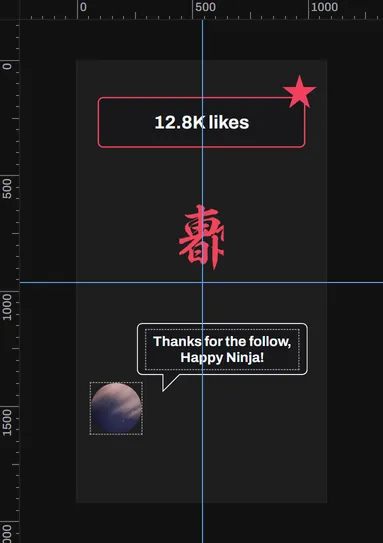
Hold Ctrl and drag from the top ruler for a horizontal guide, or from the left one for a vertical guide. Hold Ctrl and drag a guide to move it, or back onto a ruler to remove it.
With the rulers on and nothing selected, Overlay settings lists the Guides: type their positions, add one at the canvas’s middle, lock them or remove them all. Guides are saved with the overlay and never show on stream.
Keyboard shortcuts
Section titled “Keyboard shortcuts”Ctrl is Cmd on a Mac, and Alt is Option. While you type in a field, its keys work on its text.
| Keys | What they do |
|---|---|
| Delete or Backspace | Delete the selection. On the canvas, a locked one stays |
| Escape | Deselect, or cancel a crop |
| Enter | Keep a crop |
| Arrow keys | Move the selection 1 px, 10 px with Shift. On a grip in the list, move its row |
| Shift+click | Add to the selection, or take out. In the list, Ctrl+click does too |
| Drag from an empty spot | Select what the box touches, adding to the selection with Shift |
| Shift while rotating | Turn in steps of 15° |
| Shift while dragging a field | Change its number 10 at a time |
| Ctrl+C, Ctrl+X, Ctrl+V | Copy, cut and paste |
| Ctrl+Z | Undo |
| Ctrl+Y or Ctrl+Shift+Z | Redo |
| Ctrl+wheel, or a pinch | Zoom where the pointer is |
| Ctrl++ and Ctrl+- | Zoom in and out |
| Ctrl+0 | Zoom to fit |
| Space+drag | Move around the canvas |
| Ctrl+R | Show or hide the rulers and guides |
| Ctrl+drag from a ruler | Add a guide |
| Ctrl+drag a guide | Move it, or remove it on a ruler |
| Alt while dragging | Place it without sticking. On Linux, press Alt after you start the drag |
| Double-click | Crop an image, a video, a camera, a gift or an emote |
Limits
Section titled “Limits”How much an overlay holds
| What | Up to |
|---|---|
| Elements | 100 per overlay |
| Groups | 100 per overlay |
| A text | 500 characters |
| A name | 60 characters |
| A text’s Size | 400 |
| Triggers | 5 per element or group |
| Counters | 10 per overlay |
| A counter’s name | 24 characters |
| A list’s Rows | 10 |
| Guides | 50 horizontal and 50 vertical |
| Zoom | 10 to 400 % |
| Undo | 100 steps, while the editor is open |
When an overlay is full, the + menu says so.