
Adding an overlay
Tokio serves its overlays as web pages, and your streaming app shows them over your stream.
-
Turn on the overlay server
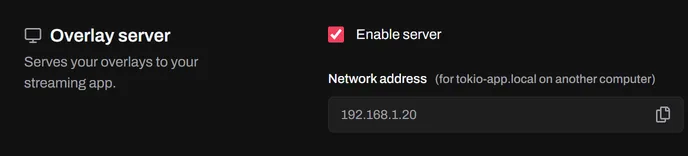
In Settings → Overlay server, turn on Enable server, or turn on Overlays under Active features on Home, and confirm. The first time, accept the administrator prompt (your password on macOS and Linux) so Tokio can add its address to your hosts file.
-
Copy the overlay’s address in Tokio
Each address starts with
http://tokio-app.local:37891, likehttp://tokio-app.local:37891/timer/.Copy it from Address An overlay’s card on Overlays /<overlay-id>/An alert’s Media tab /alerts/<alert-id>/The countdown in Tools /timer/An overlay in Overlay Studio, in Tools /studio/<overlay-id>/Games, for the games overlay /games/minecraft/Games, for its column or row 2 /games/minecraft/2/ -
Add it in your streaming app
Paste the address in a new browser source:
- In Sources, click + and choose Browser.
- Paste the address and set the width and height to your canvas size.
- Click Add source and choose Link.
- Paste the address and place the overlay on your scene.
- Add a browser or web source.
- Paste the address.
Overlays use tokio-app.local because TikTok LIVE Studio doesn’t accept localhost links.
If the overlay doesn’t show
- Tokio is closed, or Enable server is off. Overlays show only while Tokio runs with the server on.
- “Unable to set up the overlay address. Accept the administrator prompt to add it.” Turn on Enable server again and accept the prompt.
- “The overlay server couldn’t start. Port 37891 may be in use.” Another program has the port: close it and turn the server on again. When this happens as Tokio starts, it reads “The overlay server couldn’t start, so Tokio turned it off. Port 37891 may be in use.”
- An overlay was updated and the browser source still shows the old one. Refresh the source: in OBS, open its properties and click Refresh cache of current page.
- Your streaming app runs on another computer: see On another computer.
Fonts and sound
Section titled “Fonts and sound”A font you pick for an overlay, on the games overlay, the countdown, Overlay Studio or an overlay’s settings, must be installed on the computer that runs your streaming app. Otherwise the overlay shows another font, Archivo on Tokio’s own overlays.
OBS plays an overlay’s sound on its own. In a browser tab, click the page once before it can play sound.
On another computer
Section titled “On another computer”If your streaming app runs on another computer on your network, point tokio-app.local there to the computer with Tokio.
Computer with Tokio
192.168.1.20Its address is in Settings → Overlay server
Computer with your streaming app
192.168.1.20 tokio-app.localA line in its hosts file
Add that line to the other computer’s hosts file, as administrator: C:\Windows\System32\drivers\etc\hosts on Windows, /etc/hosts on macOS and Linux. Or add a DNS entry for tokio-app.local on your router.
If Windows asks whether to allow Tokio through the firewall, allow it, or the other computer can’t connect.