Live controls
Four controls work while Tokio stays in the background, so you don’t have to switch windows during your LIVE.
| Control | What it does |
|---|---|
| Skip song | Plays the next song request. With none waiting, the player skips to its own next song. |
| Stop TTS | Stops the chat message being read and drops the ones waiting. New messages are read as usual. |
| Replay last alert | Plays the last event’s alerts again, once: its sounds, spoken messages, images and videos. It works with alerts turned off too. |
| Pause everything | Stops TTS and alerts, then ignores chat TTS, alerts, song requests and game actions until you resume. Nothing from the pause plays later. The music keeps playing, the countdown keeps adding time, and overlays keep showing your LIVE. |
Shortcuts
Section titled “Shortcuts”In Settings → Shortcuts, click a control’s field and press the keys. Backspace removes a shortcut, and Esc cancels.
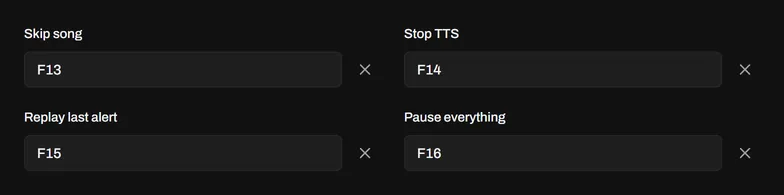
A shortcut works in every app, and the other apps lose those keys, so Tokio only takes combinations they rarely use:
- F13 to F24 and media keys like Play/Pause work alone. Macro pads and Stream Deck hotkey actions send them. A media key you pick stops working in your other players.
- Any other key needs Ctrl and one more modifier, like Ctrl + Shift + S. On macOS, that’s Command or Control and one more.
- On Windows and Linux, Ctrl + Alt also needs Shift. On many keyboards it’s AltGr, which types characters like @ and €.
Shortcuts start empty. When another app already uses one, Tokio tells you and shows In use by another app under it: pick a different one.
While Tokio is paused, Home says so at the top. Click Resume there, or press the shortcut again. Connecting to a LIVE resumes too, so a new LIVE never starts paused. Restarting Tokio also resumes.

From your phone or another computer
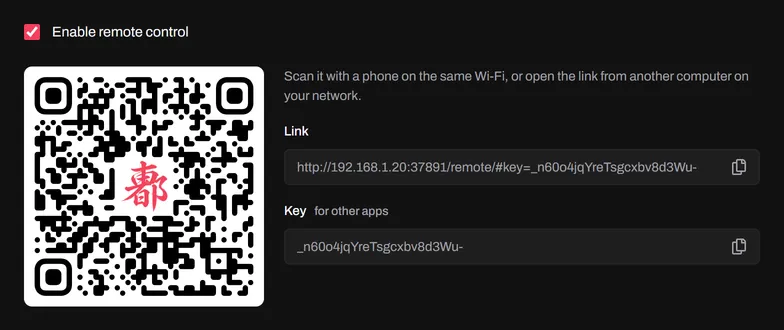
Section titled “From your phone or another computer”In Settings → Remote control, check Enable remote control and click Show QR code and key. Scan the code with a phone on the same Wi-Fi, or open the Link on another computer on your network. Bookmark the page to open it again.
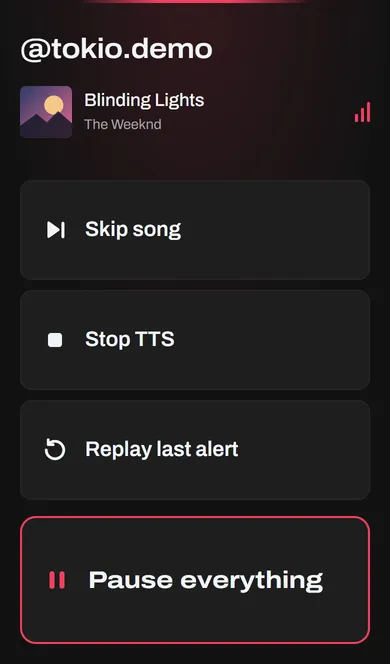
The page shows the @username of the LIVE Tokio is on, the song playing, and when Tokio is paused. A control with nothing to do, like Skip song while music isn’t connected, is grayed out and says why. On a computer, a tablet or a phone turned sideways, the controls sit in a row with Pause everything under them.
The page reaches Tokio through the overlay server, so check Enable server in Settings → Overlay server too. If Windows asks whether to allow Tokio through the firewall, allow it, or the page can’t connect.
Anyone on your network with the link can use the controls. The button next to Remote control’s title makes a new key: devices with the old link stop working until you open the new one. To press the controls from a Stream Deck or a script, see Control API.