Music
Viewers request songs from chat. YouTube songs play in Tokio’s own player window, and Spotify songs in your Spotify app.
Providers
Section titled “Providers”Pick one under Provider on the Music page, then turn on Music under Active features on Home. Music doesn’t reconnect when Tokio starts, so click Connect each time you open it.
You don’t need a Google account, but without Premium, ads play between songs and can delay them or cut them short. YouTube Premium or YouTube Music Premium skips them once you sign in with it in the player window.
Block ads stops them without Premium, using uBlock Origin’s filter lists, which Tokio downloads and keeps up to date. Turn it on before you connect.
- Pick YouTube and click Connect.
- YouTube Music opens in a window of its own. To use your account, sign in there with its Sign in button. Tokio remembers it.
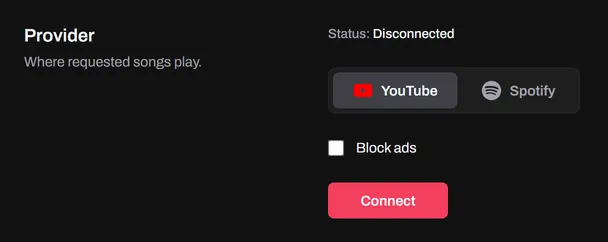
Keep the player window open while you stream: closing it disconnects music.
You need Spotify Premium: only Premium accounts can let another app control playback. Tokio connects through an app of your own, made once in Spotify’s dashboard.
- Log in to the Spotify Developer Dashboard.
- Create an app. Any name works, like “Tokio”.
- Add this redirect URI, exactly:
http://127.0.0.1:5173/callback - If it asks which APIs you’ll use, check Web API.
- Accept the terms and save.
- In the app’s Settings, copy the Client ID. You don’t need the secret.
Then, on Tokio’s Music page:
- Pick Spotify and paste the ID in Spotify Client ID.
- Click Connect, log in and let Tokio control your playback.
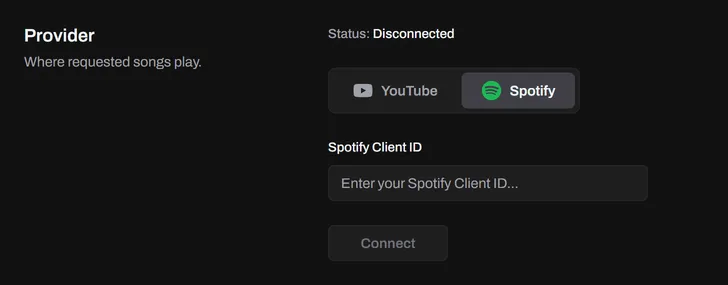
Before your LIVE, open Spotify and play a song, so Tokio has a device to play on. Connect with the account that made the app, or add others to its users in the dashboard first, up to five.
Chat commands
Section titled “Chat commands”| Command | Action |
|---|---|
!play |
Request a song |
!next |
Play the next waiting request |
!last |
Go back to the last song |
!revoke |
Remove a song from the queue by its name |
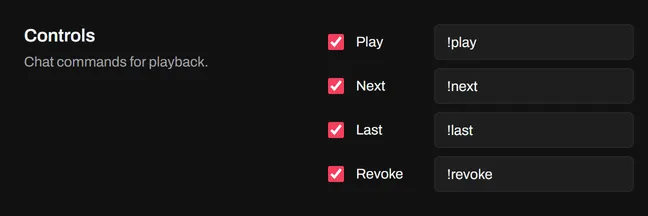
Rename or turn off each one under Controls; viewers can type them in any case.
!play One More Time adds that song, and !revoke takes its name as typed or as it shows in the queue. A song that’s playing or already played can’t be revoked.
A request waits for the song playing to end. If you skip that song in the player window or in Spotify, the next request starts within a minute. A request without a song name, one that finds nothing, or one past Max queue length is ignored, and !next does nothing with no request waiting.
Limit Next, Last and Revoke, on by default, keeps !next, !last and revoking other viewers’ songs to you and your moderators; turn it off to open them to every viewer Permissions allows. With it on, viewers can still skip a song they asked for while it plays, and revoke their own requests.
Who can request
Section titled “Who can request”Music has its own Permissions and Protection, set like text-to-speech’s, Twitch, YouTube and Kick chatters included: they never pass Followers only or Minimum fan level. The cooldown is for all of chat: a command sent before it passes is dropped.
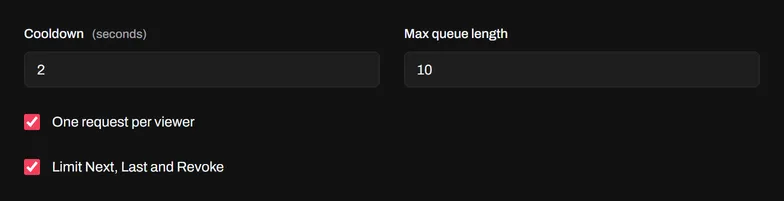
One request per viewer ignores a viewer’s next !play while their song waits, and doesn’t add a song that’s already playing or waiting.
Song changes are a LIVE event too, so they can trigger an alert or update an overlay.