
Profiles and settings
Profiles keep each stream’s setup apart, and Settings holds what they all share. Tokio saves your changes as you make them.
Profiles
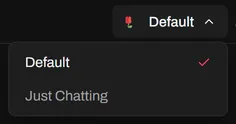
Section titled “Profiles”Each profile has its own TTS, music, alerts, game actions, countdown, Coin stats and fans, and remembers the username, YouTube channel and Kick channel you last connected with and the platforms it connects to. Switch profiles from the title bar, or under Active profile in Settings → Live profiles, while you’re not connected.
Every profile shares the installed overlays, Overlay Studio’s overlays, the Library, the test overlays, Home’s Active features and Activity feed, and the Minecraft connection.
In Settings → Live profiles, New creates a blank profile and Clone copies one you have, without its Coin stats or fans. Names need 3 or more characters and must be unique, and profiles can’t be renamed or deleted.

Export saves the active profile’s settings as a file, and Import adds one as a new profile. The file holds no sounds, images, videos, game pictures, Coin stats or fans, so on another computer its alerts report a missing sound until you pick it again.
Settings
Section titled “Settings”| Section | What it’s for |
|---|---|
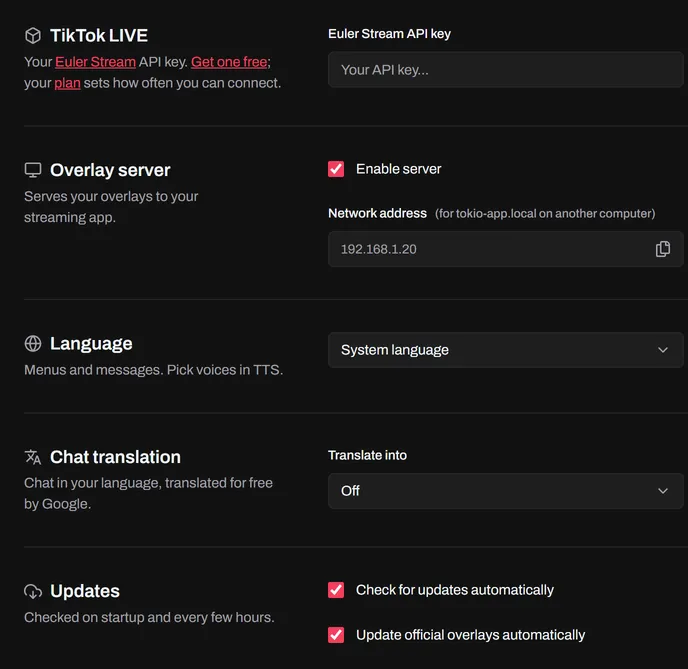
| TikTok LIVE | Your Euler Stream API key, which Tokio needs to connect. Sign up for free. |
| Twitch | Signs Tokio in to your Twitch channel, with Sign in with Twitch, so it can connect to it. The account is shared by every profile. See Sign in to Twitch. |
| Overlay server | Turns on the server for overlays, and shows your network address for a streaming app on another computer. |
| Language | English or Spanish. System language follows your computer’s, falling back to English. It changes Tokio’s menus and messages, the text Tokio writes on the games and timer overlays, and an overlay’s settings when the overlay translates them, but not the TTS voices. |
| Chat translation | Translates viewers’ messages into the language you pick, for free with Google, and Test tries it. See Chat translation. |
| Updates | Turns off the automatic checks for new versions of Tokio, and the automatic updates of official overlays. |
| Tray | Keeps Tokio in the tray (the menu bar on macOS) when you close it. Click the icon or Open Tokio to bring it back, and Quit Tokio to quit. On Linux, the first time you close it after Tokio starts, a notification says Tokio is still running: click it to bring Tokio back. |
| Shortcuts | Keys for the live controls, which work in any app: skip a song, stop TTS, replay the last alert and pause everything. |
| Remote control | The live controls on your phone or another computer, through a QR code or its link, and the key for the Control API and MCP. Off until you check it. |
| Voice engines | Your TikTok session ID, so TikTok voices come straight from TikTok instead of a third-party proxy. Your API keys for ElevenLabs, Fish Audio, Cartesia or Inworld, for their voices and to clone your own. Add one with the + next to Voice engines. Removing a key puts the default voice back wherever that service’s voices were picked. |
| Logs | Export logs, the button next to the section’s title, saves all of Tokio’s logs in one .zip to attach to a bug report. Detailed logs also writes every LIVE event to them, after you confirm. They grow faster that way, so turn it off once you’ve sent them. |
Opening Tokio while it’s already running brings its window to the front. About, in the sidebar, shows Tokio’s version, its license and the third-party notices, and has Check for updates and Take the tour.
Notifications
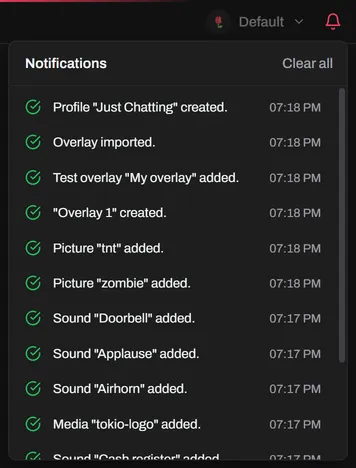
Section titled “Notifications”When something fails, such as a voice that can’t be made or a missing sound, Tokio tells you what went wrong. The bell in the title bar keeps the session’s last 50, and Clear all empties it.
Your files
Section titled “Your files”Tokio keeps your settings and files in the .tokio folder in your user folder: C:\Users\<you>\.tokio on Windows, ~/.tokio on macOS and Linux.
| Folder | What’s in it |
|---|---|
settings |
Settings, and what every profile shares |
profiles |
Each profile’s settings |
sounds, media |
The Library’s sounds, images and videos |
overlays |
The overlays you installed or imported |
games/minecraft |
The Minecraft pictures |
fans |
Each profile’s fans |
history |
Each profile’s past LIVEs, for Coin stats |
extra |
TikTok’s gift list, the gifts viewers sent that aren’t on it, and Block ads’ filter lists |
logs |
What Tokio did, for bug reports |
Your YouTube and Spotify sign-ins are in Tokio’s app data folder instead: %APPDATA%\tokio on Windows, ~/Library/Application Support/tokio on macOS and ~/.config/tokio on Linux.
To report a bug, open an issue on GitHub and attach the .zip that Export logs saves in Settings → Logs. The logs include your TikTok username, and with Detailed logs on, your viewers’ usernames too.