
Overlays
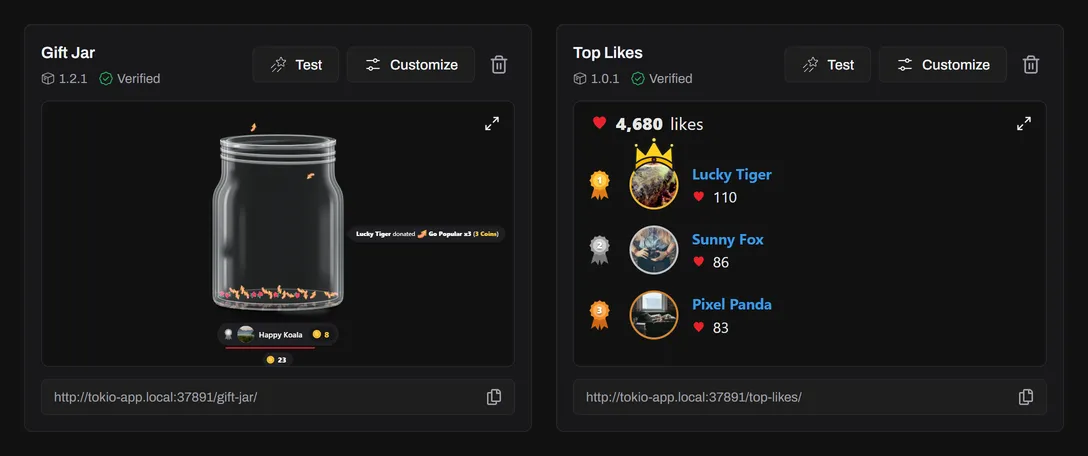
Overlays are web pages on your stream that react to your LIVE, like a gift jar or a likes leaderboard.
Install an official overlay
Section titled “Install an official overlay”On Overlays, click Official overlays, then Install on the one you want. It shows in the gallery marked Verified.
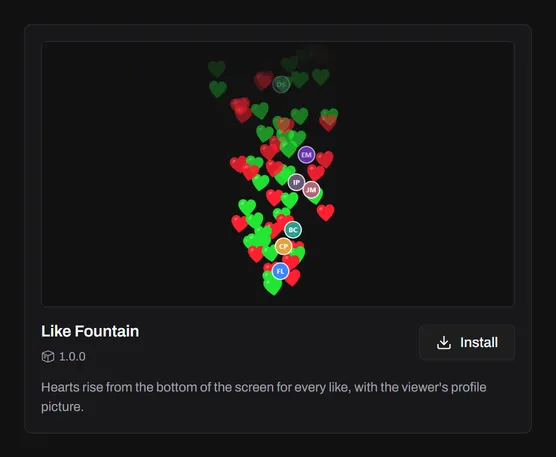
To find one, click the search button: it looks in the overlays’ names and descriptions.
Tokio updates official overlays on its own: it looks for new versions when it starts and every few hours, and keeps your settings where they still fit. Refresh an updated overlay in your streaming app to load the new version.
A version that changes how an overlay works, like 2.0 after 1.4, waits for you. Tokio lets you know and a dot shows on Official overlays: click Update there and confirm. To update overlays only by hand, turn off Update official overlays automatically in Settings → Updates. Then the dot shows for every new version.
An official overlay’s address ends in its own name, like /gift-jar/, so it stays the same if you remove and install it again.
Import your own
Section titled “Import your own”On Overlays, click + (Import overlay) and pick an overlay’s folder. Building an overlay says what the folder needs.

The overlay shows marked External and gets no updates. Tokio keeps a copy, so later edits to the folder don’t reach it.
Importing the folder again makes a second overlay, with a new address and default settings.
Set it up
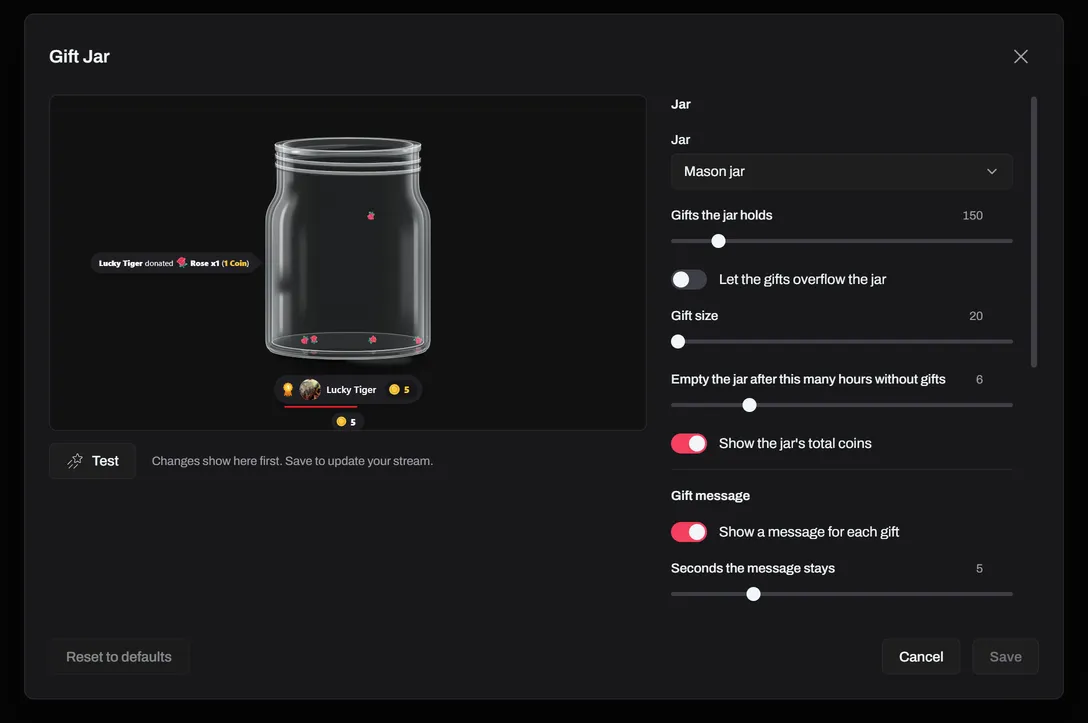
Section titled “Set it up”Click Customize to change an overlay’s colors, text or gifts; it shows only on overlays with settings. The preview shows your changes, and Save sends them to your stream.
The Test in Customize stays in its preview. Some settings only show with certain values of another, like how long a message stays while messages are on. The settings follow Tokio’s language when the overlay has translations for them; what the overlay shows on stream doesn’t change with it.
Add it to your stream
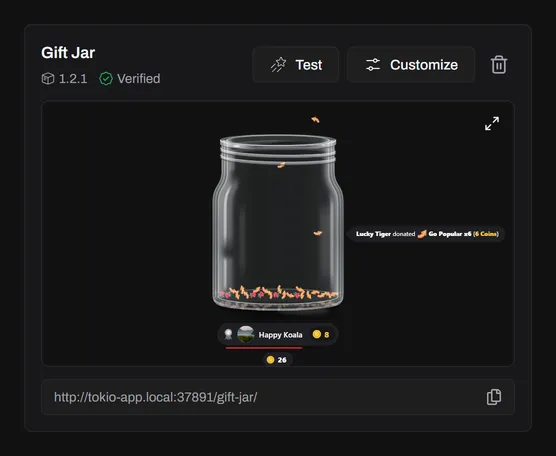
Section titled “Add it to your stream”Copy the address from the overlay’s card. Its Test sends sample events to the preview and to the overlay on your stream. See Adding an overlay for the rest.
Remove an overlay
Section titled “Remove an overlay”Use the trash button on its card, in the gallery or in Official overlays. It’s deleted with its settings, after you confirm.
Make your own
Section titled “Make your own”Build one in the app with Overlay Studio, from text, images and the overlays you have; the ones you build live there. Or write one by hand or with any framework: see Building an overlay.