
Overlay Studio
Overlay Studio builds your own overlays from text, images, your cameras, gifts and the overlays you already have. Each element can stay on screen or react to your LIVE, and each overlay is one browser source.
-
In Tools, open Overlay Studio and click New overlay. It’s named Overlay 1, or the next free number, and opens in the editor.
-
Click + in Elements and pick what to show. Drag it into place on the canvas.
-
Click Copy overlay URL and add it to your streaming app (see Adding an overlay):
http://tokio-app.local:37891/studio/<overlay-id>/
Changes save as you make them and reach your stream right away. Every profile shares the same overlays, but what you embed from alerts, the countdown and the games overlay follows the active profile.
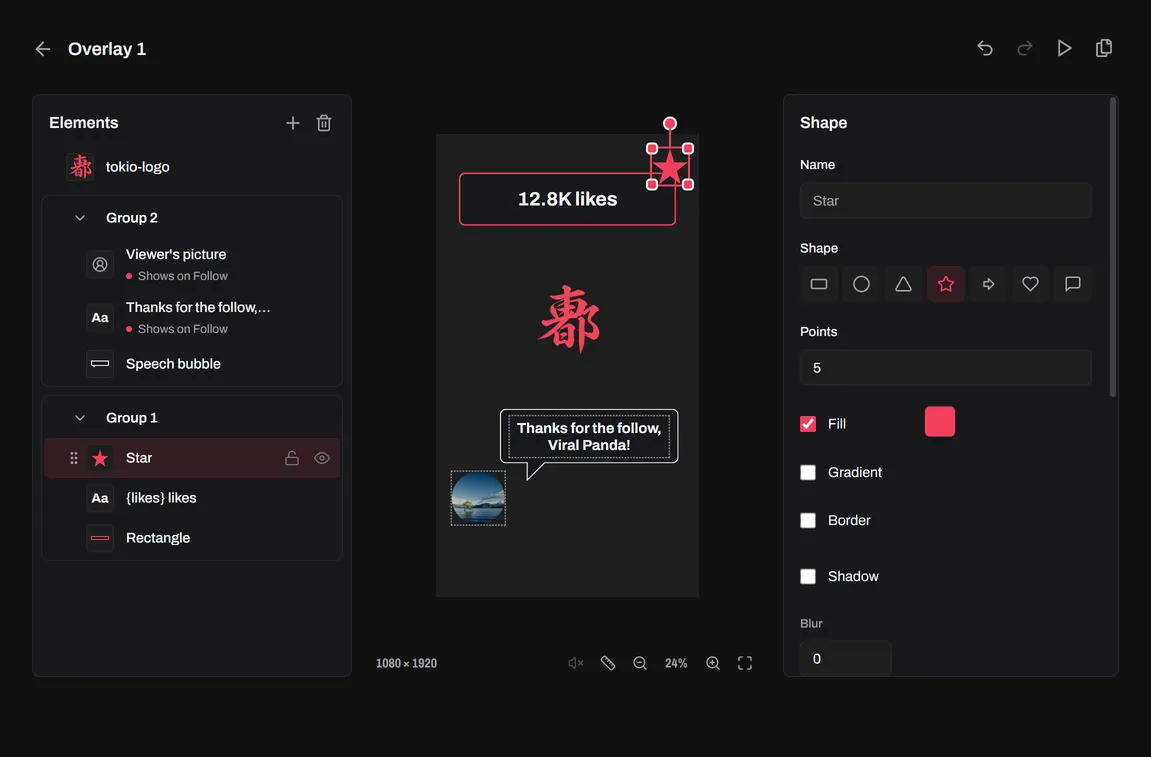
New overlays are Portrait, 1080 × 1920. With nothing selected, Overlay settings changes the name and the Canvas, to Landscape at 1920 × 1080.
The browser source scales the canvas to fit, centered.
To copy an overlay, use Duplicate overlay on its row. The copy is named after it, like Overlay 1 copy, and gets its own URL.
To delete an overlay, use Delete overlay on its row in Overlay Studio and confirm.
Elements
Section titled “Elements”An overlay is made of elements, the things that show:
| Element | What it shows |
|---|---|
| Text | Your text, with its Font, Size, Color, Gradient, Outline, Letter spacing, Line height, Alignment, Bold, Italic, All caps and Dark halo. See Text. |
| Image or video | A file from the media library you use for alerts. A video plays with its sound. |
| Camera | A camera on this computer, live. See Cameras. |
| Gift | The picture of the gift a viewer sends, or of one gift you pick. The gift sent needs the Gift trigger, so it can’t be Always on screen or Moves all the time. |
| Emote | The emote a viewer sends in chat, or one you pick from those viewers have used. The emote sent needs the Emote trigger, so it can’t be Always on screen or Moves all the time. |
| Shape | A rectangle, an ellipse, a polygon, a star, an arrow, a heart or a speech bubble, filling its box, with a Fill and a Border, each in its own color. Turn either one off. With Gradient, the fill fades into a second color at the angle you set. Border width goes from 1 to 100. A polygon has 3 to 12 Sides, a star 3 to 12 Points, and a rectangle or speech bubble a Corner radius. |
| Viewer’s picture | The profile picture of the viewer who set the element off, or their initial when they have none. It can’t be Always on screen or Moves all the time, and only reacts to events a viewer sends: not an envelope, a Super Fan Box or a music change. |
| Goal bar | A bar that fills as a LIVE number or a counter comes to its goal. See Goal bars. |
| List | Rows of this LIVE’s top gifters, or its newest followers, gifts or chat messages. See Lists. |
| Overlay | An installed overlay, the countdown, the games overlay or an alert’s overlay. See Embedding overlays. |
To order, lock, hide and move elements together, put them in a group. The Overlay Studio editor page covers groups, placing, cropping and the keyboard shortcuts.
A font that isn’t installed on the computer that runs your streaming app shows as Archivo, and a browser tab plays a video’s sound only after a click on it. See Fonts and sound.
If you delete a file from the media library, it also leaves every element that showed it, and those elements stay empty.
Each element’s and group’s When sets how it reacts:
| When | What it does |
|---|---|
| Always on screen | Stays on screen. |
| Shows on an event | Stays hidden until its Trigger, then comes in with its Entrance for its Seconds on screen, from 1 to 60, and leaves with its Exit. |
| Moves on an event | Stays on screen and plays its Animation each time its Trigger fires. |
| Moves all the time | Stays on screen and plays its Animation over and over, with no trigger. |
Entrance and Exit each pick one of Fade, Pop, Slide up, Slide down, Slide left, Slide right, Zoom, Drop, Spin, Flip, Wipe and Blur. For Moves on an event, Animation picks one of Bounce, Shake, Pulse, Wiggle, Spin, Flip, Jump, Swing, Ta-da, Heartbeat, Flash and Jelly; for Moves all the time, one of Float, Breathe, Spin, Sway, Hop and Drift.
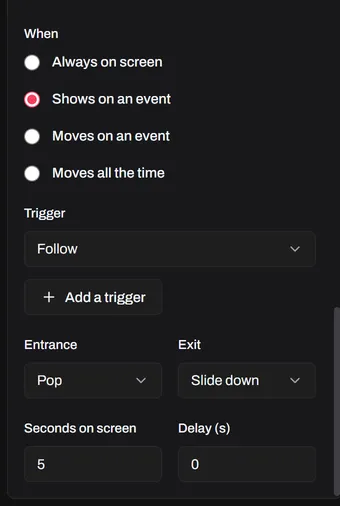
A group moves as one: one that shows on an event brings all its elements in and out together, and one that moves carries them with it. Its elements keep their own When, so an element can bounce on each gift while its group floats.
The Trigger picker has the same events and filters as alerts, without Worth at least and From. On Like, the element reacts every time your viewers send another 100 likes in total; change that number in the field next to the trigger. The count starts over when you disconnect.
Add a trigger adds another one under Or, up to 5 in all, each with its own filters. The element reacts to any of them.
Goal reached reacts once per LIVE, the first time a number reaches its goal. Pick a LIVE number, like {likes} or {coins}, or one of the overlay’s counters, then the goal. If you change the goal, it can react again in the same LIVE.
Delay (s) makes an element or group that shows or moves on an event wait up to 10 seconds after its trigger, for example until an alert is over. Another trigger during the wait changes the event it shows, but doesn’t restart the wait.
If its trigger fires again while it shows or leaves, it starts over with the newest event’s values.
In the editor, an element or group that shows on an event stays on the canvas with a dashed outline, so you can place it. What moves all the time moves on the canvas too.
A text element can show live numbers from your LIVE, written in braces:
| Variable | Shows |
|---|---|
{likes} |
The LIVE’s likes |
{viewers} |
The viewers watching now |
{followers} |
New followers during this LIVE |
{shares} |
Shares during this LIVE |
{coins} |
Coins received during this LIVE |
{gifts} |
Gifts received during this LIVE |
{uptime} |
How long you’ve been LIVE, like 01:02:03 |
They’re shortened in Tokio’s language (Settings → Language), like 12.8K in English, and read 0 while you’re not LIVE ({uptime} reads 00:00:00). The editor shows sample numbers. A text also shows the overlay’s counters, like {roses}.
A text that reacts to an event can also use that event’s values, like Thanks {username}! on a gift or {username} sent {count} {gift}. Like has no viewer or count of its own, since its likes come from every viewer: {likes} shows the LIVE’s total.
With several triggers, a text can use the values of each. One that the event doesn’t have is empty, like {gift} on a follow.
The variables a text can use are listed under its Text: the LIVE numbers and the counters, then the event’s when it reacts to one. On Chat and Emote, {translation} shows the message’s translation while Chat translation is on.
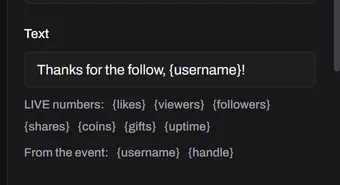
An element keeps its last event’s values until Tokio closes, so Last follower: {username} still shows after you reload the browser source. Before its first event, those variables are empty.
Hidden elements, and the elements of a hidden group, keep reacting, so they show the latest event when you show them again.
Gradient fades a text’s color into a second one, at the angle you set: 90 runs left to right, 180 top to bottom. Outline draws a line around the letters, outside them, in its own color and width. Letter spacing and Line height are percents of the size, and line height starts at 115. A thick outline can reach past the text’s box.
Counters
Section titled “Counters”A counter counts an event during each LIVE, like roses or follows. With nothing selected, click Add a counter in Overlay settings. Name it, like roses, and pick what it counts, with the same filters as a trigger. Each overlay has up to 10 of its own.
A text shows it as {roses}, and Goal reached can wait for it. What each event adds:
- A Gift adds the gifts sent: with When streak ends, a whole streak when it ends; with Every gift, each one as it comes.
- A Like adds its likes.
- Any other event adds 1.
Counters start at 0 when you connect, keep counting when Tokio recovers a dropped connection, and read 0 while you’re not LIVE. In the editor, each one shows 12.
A name takes only letters without accents, numbers and _, up to 24 characters. The editor warns you when a counter has no name, the same name as another counter, or the name of a LIVE number or an event’s value, like likes or username.
Goal bars
Section titled “Goal bars”A Goal bar fills as its Number comes to its Goal. The number is a LIVE number, like {likes} or {coins}, or one of the overlay’s counters. The bar is full past its goal, and empty while you’re not LIVE.
- Fill is the bar’s color. With Gradient, it fades into a second color across the whole bar, so the second color shows as it fills.
- Background is the color of the part still to fill.
- Round corners goes from square to round ends, which is where it starts.
- Vertical, filling from the bottom stands the bar up where it is.
The fill slides to each new number. A bar shows no words: put a text on or next to it, like {roses} / 10 roses. In the editor, every bar shows 60% full.
A List shows a row per viewer or event of what it Shows:
| Shows | Its rows |
|---|---|
| Top gifters this LIVE | The viewers who sent the most coins this LIVE, with their coins, the most first |
| New followers | The newest followers, the newest first. One who follows again moves up |
| Latest gifts | The newest gifts, with the gift and its count, the newest first. A streak shows when it ends |
| Chat | The newest messages, the newest at the bottom. Messages of emotes alone don’t show |
Each row has the viewer’s picture, or their initial, then their name. Chat puts the message after the name, and the coins and counts sit on the right, in Number color. Rows sets how many show, up to 10, and Space between rows the gap, in pixels of the canvas. Turn off Viewers’ pictures to show names alone.
YouTube’s Gifts have no price, so their senders never show in Top gifters this LIVE. Kick’s Kicks do, with their price in Kicks as coins. Lists are empty while you’re not LIVE and start over when you connect. What doesn’t fit in the box is cut off at its edge, chat’s oldest at the top. The editor shows sample rows.
Shadow and blur
Section titled “Shadow and blur”Every element has a Shadow and a Blur, under its own settings:
- Shadow draws a shadow in its color, as soft as its Softness and moved by X and Y, in pixels of the canvas. It falls the same way however you turn or flip the element. With X and Y at 0 and a bright color, it’s a glow.
- Blur softens the element itself, from 0 to 50.
Cameras
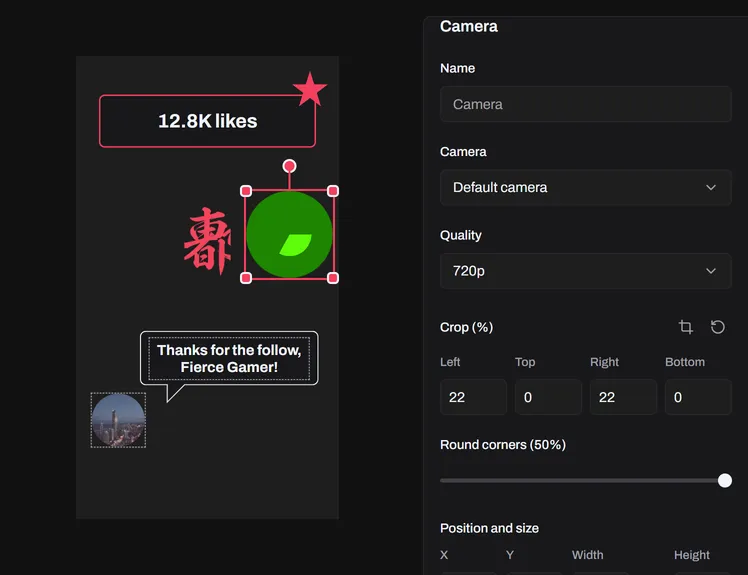
Section titled “Cameras”A Camera element shows a camera on this computer, live, on your stream and on the canvas. In Camera, pick Default camera (the one your system uses first) or any camera the computer has.
Each element can show a different camera, and several elements can show the same one. A camera you picked that isn’t plugged in shows as (not connected).
Quality sends the camera at 720p or 1080p. 1080p is sharper and takes more of your computer’s power; 720p is plenty for a camera in a corner.
Elements that show the same camera share it at the higher of their qualities.
Crop it and round its corners like a picture, up to a circle for a round camera, and use Flip to mirror it. To show a camera on its own, make an overlay with one Camera element that fills the canvas.
Tokio turns a camera on only while the editor or an overlay that shows it is open, and turns it off a few seconds after the last one closes. Hiding the element turns its camera off too.
The editor shows the camera straight from your computer, so it works with the overlay server off. Your stream gets it through the server.
Other computers on your network can’t open your camera: only the overlays Tokio serves get its address, which changes every time the overlay server starts.
If a camera can’t start, Tokio tries again every 5 seconds, and tells you why once your stream uses it:
- Another app may be using it, like OBS’s own Video Capture Device for the same camera. Use the camera in one app at a time.
- On Windows, turn on Let desktop apps access your camera in Settings → Privacy & security → Camera.
- On macOS, allow Tokio when it asks, or later in System Settings → Privacy & Security → Camera.
Embedding overlays
Section titled “Embedding overlays”An Overlay element shows another overlay inside this one: pick it in Overlay. The list has your installed overlays, the Countdown, the Games overlay, and the alerts of the active profile that show an image or video.
If your games overlay has more than one column, each column is in the list too (Games overlay, column 2, or Games overlay, row 2 when it’s horizontal), so you can place them apart. Games overlay shows all of them in one box.
On your stream, each one is the real overlay at its own address, live. In the editor:
- an installed overlay shows its own sample data;
- the countdown and the games overlay show the previews from their own pages;
- an alert’s overlay is a box with the alert’s name, since it only shows its image or video while the alert plays.
The countdown, the games overlay and alerts follow the active profile. An alert from another profile shows nothing, and the editor calls it Deleted alert.
If you remove an official overlay you embedded, its element shows nothing until you install it again.
The play button, Test the elements and groups that react to events, plays each element and group that reacts once, after its delay, elements with sample values for their first trigger, in the editor and on your stream. An element that shows on an event plays its entrance, its seconds on screen and its exit, then comes back to the canvas.
Embedded overlays don’t get the samples. Tokio keeps them only while their element is on screen, so after that a reload shows the real last event again.
An overlay embedded twice shares its settings
An overlay you embed in two elements, or in two Overlay Studio overlays, has one set of settings, the same as when you add it twice as browser sources.
The editor’s timer and games previews are close, not exact
The editor can’t open the real countdown or games overlay, so it scales their pages’ previews to the element’s box. Check them in your streaming app.