Games
Gifts, follows and chat set things off in your Minecraft world, and an overlay shows viewers what each one does.
Connect Minecraft
Section titled “Connect Minecraft”Tokio works with Bedrock Edition by itself, and with Java Edition through the Tokio mod. Both connect from the game’s chat, one game at a time.
On Games, turn on Minecraft: the status reads Waiting for Minecraft. Tokio listens only while it’s on, and the switch is the same for all profiles.
Bedrock Edition
Section titled “Bedrock Edition”Follow the steps Games shows for Bedrock, in Minecraft:
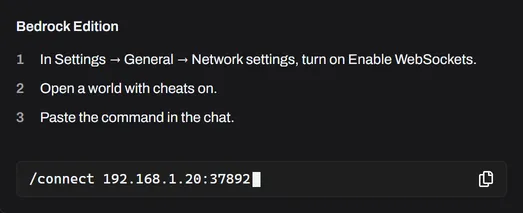
Require Encrypted WebSockets can stay on. Leaving the world ends the connection, so type the /connect command again next time.
If it doesn’t connect
- Port 37892 is in use: another program holds the port. Close it, then turn Minecraft off and on.
- The game says WebSockets are off: turn on Enable WebSockets.
- The game won’t take the command: the world needs cheats on.
Java Edition
Section titled “Java Edition”The Tokio mod, for Fabric, connects single-player and LAN worlds you host, not dedicated servers. Cheats can stay off: it runs commands as you, with a command block’s permission, and their answers don’t show in chat.
In a LAN world, Tokio’s mobs never go after other players, and its explosions, lightning, arrows, potions and dragon’s breath don’t hurt them. Only you see the meteors and lasers.
Install the mod
Section titled “Install the mod”You do this once, for Minecraft Java 26.3.
- Install Fabric Loader for 26.3.
- Put Fabric API for 26.3 in Minecraft’s
modsfolder. - Download the Tokio mod (
tokio-0.2.3.jar) and put it in the same folder. - Start Minecraft with the Fabric profile.
Connect
Section titled “Connect”Open a world, then type the command Games shows in the game’s chat:
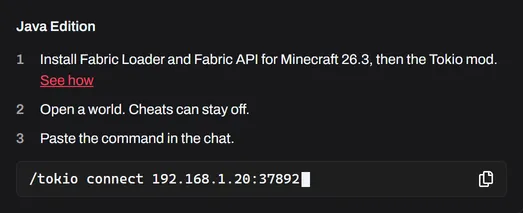
On the same PC as Tokio, /tokio connect is enough. The mod never reconnects by itself: connect each time you open the world.
| Command | What it does |
|---|---|
/tokio |
Says whether the world is connected |
/tokio connect [address] |
Connects, to localhost:37892 without one |
/tokio disconnect |
Disconnects from Tokio |
Only the world’s host can use them.
If it doesn’t connect
- The game doesn’t know
/tokio: check the Fabric profile and themodsfolder. - Couldn’t connect to Tokio at …: turn on Minecraft, and use an address from Games.
- Another game connected to Tokio.: another game replaced this one.
- Minecraft was turned off in Tokio.: the switch on Games was turned off.
Another device
Section titled “Another device”The same command works from a phone or another PC on your network. With more than one address, Games shows a command for each: use the one on your device’s network.
Actions
Section titled “Actions”An action is a trigger and the steps it runs. Actions belong to the profile, and each edition has its own tab: Bedrock and Java.
- Pick the tab of your game’s edition.
- Click Add action under its actions. It starts as a Follow that spawns one Zombie.
- Pick the trigger, change the step, and click Add step for more.
- Click the play button to test it.
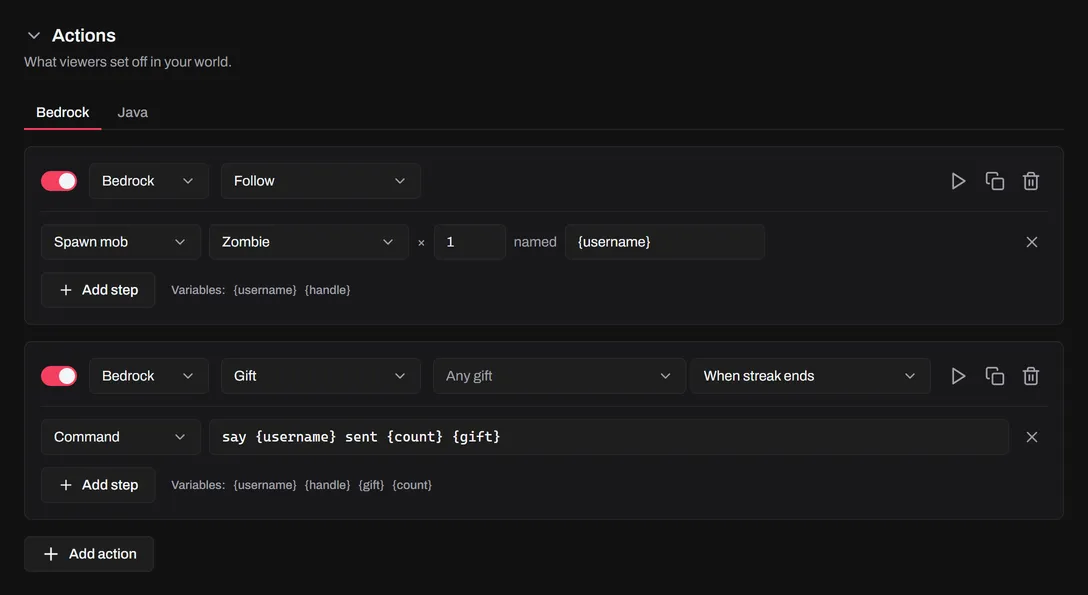
Each action has its own on/off switch. Remove action and each step’s Remove step delete at once, without asking.
Games opens on the connected game’s tab, or on Java when only Java has actions, and turns to a game’s tab when it connects. A new action takes its tab’s edition.
Duplicate action puts a copy right after the action: change its edition to run the same steps in the other game.
Changing an action’s edition
- The action moves to the other tab.
- Its mobs and items become the other edition’s, or a zombie or a diamond when that edition has none like them.
- On Bedrock, Meteor becomes Falling TNT, the lasers become Lightning bolt, and Turn into mob and Back to normal go away.
- Runs still waiting for its old edition are dropped.
Click Actions to fold the actions away and give the overlay more room. They open again the next time you open Games.
Triggers work as for alerts, without joins, envelopes, Super Fan Boxes and song changes. They have no Worth at least or From. With two or more platforms, a trigger can also pick one, and Twitch’s Subscription, Gifted subs, Bits, Raid and Channel points, YouTube’s Super Chat and Kick’s Subscription, Gifted subs, Raid and Channel points are there too.
| Trigger | Options |
|---|---|
| Gift | The gifts, and When streak ends or Every gift, as in gift alerts |
| Chat | A keyword or phrase the message must have |
| Like | Every how many likes, 100 to start. All viewers’ likes count together, and the count starts over when you disconnect. |
| Emote | The emotes, or any |
| Channel points | A reward’s title, or Any reward |
Actions run while Minecraft is on, a game of their edition is connected and Tokio isn’t paused, whatever’s on at Home.
Steps run in order, as you, where you stand. Minecraft steps has what each one does in the game.
| Step | What it does |
|---|---|
| Spawn mob | 1 to 100 of a mob, with an optional name |
| Turn into mob | Java only: you become a mob, until Back to normal or for the seconds you set |
| Back to normal | Java only: ends Turn into mob |
| Give item | 1 to 100 of an item, to you |
| Weather | Clear, Rain or Thunder |
| Time of day | Day, Noon, Night or Midnight |
| Hazard | Something that tries to kill you or gets in your way |
| Help | Something that helps you survive |
| Command | Any command, as you’d type it in chat, slash or not |
Variables
Section titled “Variables”A mob’s name and a command can use these. Click one to add it.
| Variable | Triggers |
|---|---|
{username}, {handle} |
All but Like |
{comment} |
Chat, Emote, Subscription, Bits, Channel points, Super Chat |
{translation} |
Chat, Emote, with Chat translation on |
{gift} |
Gift |
{count} |
Gift (the streak’s size, not with Every gift) |
{count} |
Subscription (the months), Gifted subs, Bits, Raid (the viewers) |
{reward} |
Channel points |
{amount} |
Super Chat (as YouTube shows it, like $4.99) |
Viewers pick their own names and messages, so Tokio cleans what a variable adds to a command.
What it removes
Quotes (" and '), backslashes, brackets and braces ([ ] { }), §, @, * and control characters, and line breaks become spaces. It also cuts the text to 100 characters. Your own text in a Command step stays as you wrote it, but a Spawn mob name is cleaned whole, yours included.
The play button runs the action once with sample values, and lists the game’s answers.
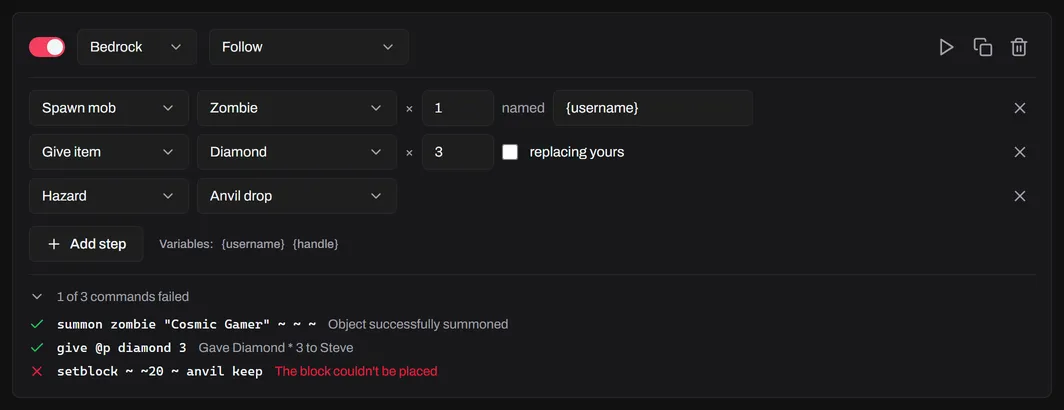
Failures show in red, in the game’s language, and the list keeps the last 25: click its count to fold it. Test needs a game of the action’s edition connected.
Show your actions on stream
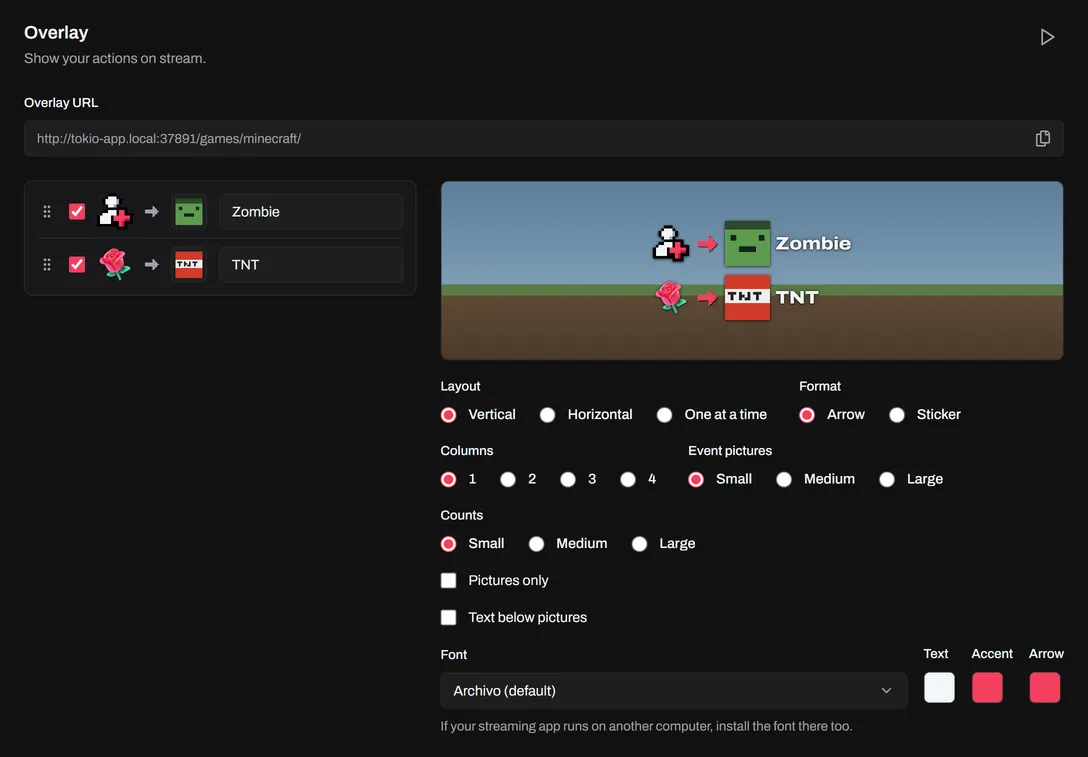
Section titled “Show your actions on stream”The Overlay section shows viewers what each event does, with a picture and name you pick.
- Turn on the overlay server in Settings → Overlay server.
- Copy the address in Overlay URL.
- Add it to your streaming app, as in Adding an overlay.
http://tokio-app.local:37891/games/minecraft/Split it into up to 4 Columns, or Rows when it’s horizontal, to spread it over the screen. Each gets its own address under Overlay URLs, like http://tokio-app.local:37891/games/minecraft/2/, and fills its source, shrinking to fit.
Each action has a row, in the actions’ order:
- Show on the overlay puts it on the overlay. It needs the action on, and a picture or a name.
- The event shows a gift’s or emote’s picture, or Tokio’s own pixel icon. On Chat, and on a gift or emote action with none picked, type over its text to change it; empty it to go back.
- The square picks the picture.
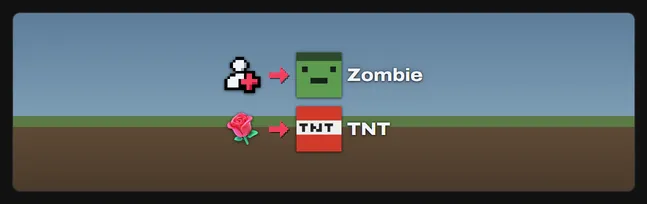
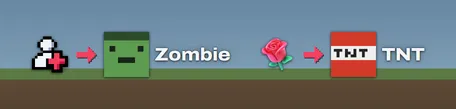
- The name starts from the steps, like Zombie. Type your own, or empty it to go back.
- Column (Row when horizontal) picks where it shows, with more than one.
- Drag a row by the dots on its left to move it up or down, or reach them with Tab and use the arrow keys. Actions lists them in the same order.
Pictures
Section titled “Pictures”Tokio can’t include Minecraft’s pictures, so you add your own: png, jpg, gif or webp, up to 50 MB. Click the square, then Browse files… to add one or several.
All profiles share the library, in the games/minecraft folder inside the .tokio folder in your user folder. Clear takes the picture off an action; its delete button in the picker takes it off every action and deletes the file.
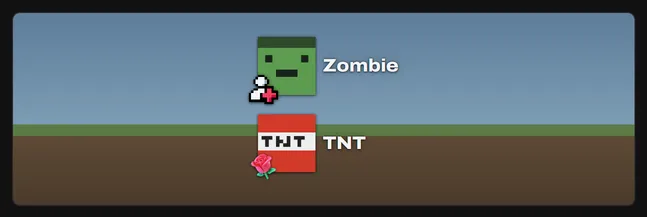
Format is Arrow, as at the top of this page, or Sticker:
Horizontal puts the actions side by side, for a strip along the top or bottom of the stream:
| Option | What it does |
|---|---|
| Layout | Vertical shows every action top to bottom and Horizontal side by side; One at a time turns every 3 seconds |
| Columns | Splits the actions into 1 to 4 overlays, called Rows when horizontal |
| Event pictures | Small, Medium or Large gifts, emotes and icons |
| Counts | Small, Medium or Large numbers on the pictures’ corners: an action’s amount and the likes’ count |
| Pictures only | Hides the texts next to pictures |
| Text below pictures | Puts the texts under the pictures |
| Font | A font on your computer, Archivo by default. Install it where your streaming app runs too |
| Text, Accent, Arrow | The colors of the texts, a lit action and the arrows |
Light-up
Section titled “Light-up”When an action runs in the game, it lights up on the overlay in the accent color. A burst keeps it lit until 1.5 seconds after the last run.
The play button on Overlay lights up the next action, in the preview and on stream.
Limits
- Every run of a Gift or Like action goes out, however many come at once.
- Actions on other events keep at most 100 runs waiting. More are skipped until the game catches up, so a busy chat can’t put them minutes behind.
- An action’s runs go one at a time, and other actions don’t wait for them. A big Spawn mob holds its action: 100 mobs take about 25 seconds.
- Turning an action off, removing it, changing its edition, turning Minecraft off, switching profiles, pausing Tokio or the game leaving stops its waiting runs. Disconnecting from the LIVE doesn’t.
Notices
- Minecraft Java Edition isn’t connected, so the … action didn’t run. (or Bedrock Edition): an action ran with no game of its edition. At most once a minute.
- A command of the … action failed in Minecraft: then the game’s answer. At most once every 30 seconds per action.
- The … action has 100 runs waiting, so new ones are skipped until Minecraft catches up. At most once every 30 seconds per action.
- Tokio couldn’t listen for Minecraft. Port 37892 may be in use.: the port was in use when Tokio started.